Integrating the Script

Now that you understand how our scripts work and their importance for both optimization and GDPR compliance, let's proceed to integrate them into your website. This step is crucial to start leveraging Optimeleon's capabilities for continuous, AI-driven optimization. Adding the script is as simple as copying a few lines and pasting it on your page!


Step 1: Add the Base Script to the <head> section

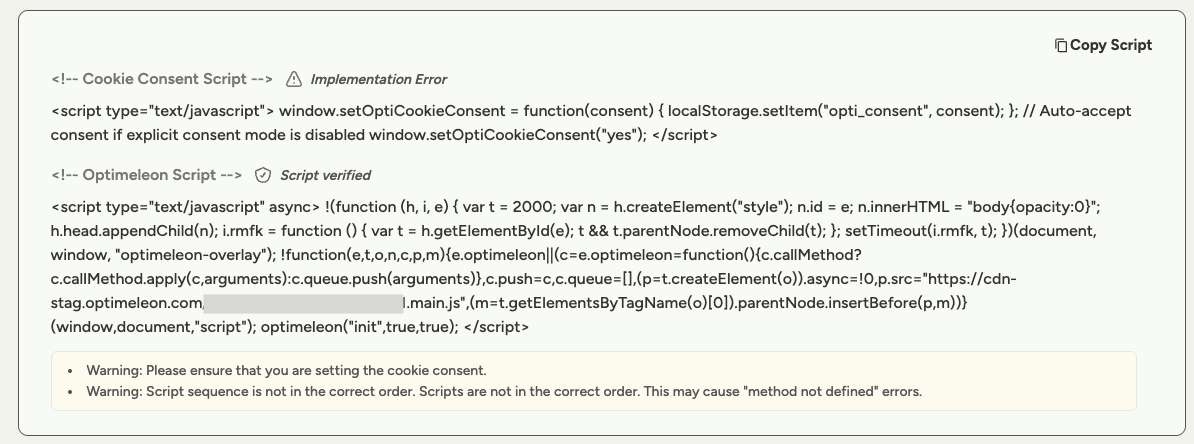
The base script is responsible for selecting variants and tracking user behavior in a cookieless manner. It ensures instant page loading without flickering and complies with GDPR regulations by not using cookies, only memory.

  1. Locate the <head> Section of Your Website

    • Access your website's HTML files or your Content Management System (CMS) where you can edit the HTML code.

    • Find the <head> section in your HTML code. This is typically near the top of your HTML file.

  2. Paste the Base Script

    • Log in to your account and visit the Script page. (We recommend turning the Manual consent mode off and keeping the Reduce Flicker on.)


    • Copy the code

  3. Insert the copied script tag within the <head> section


That is it. Once you create a campaign, your pages will automatically come to life!

This script enables cookieless tracking (if you have turned on Manually add consent) and instant variant selection based on factors like campaign URL, user data, optimization data collected, and AI prediction data.

Note: For Shopify sites or if you have a checkout page on Shopify, please check the Shopify section.

  1. Save and Publish

    • Save the changes to your HTML file or CMS template.

    • Ensure that the updated page is published and live on your website.

Optional Step 2: Activate First-Party Cookies After User Consent

Note: Follow this step only if you kept manual consent toggled on. This is for users who want explicit control over cookie usage, you can keep the "Manually add consent script" setting toggled on. Optimeleon will not use cookies in this case. Please read the Cookies section under "How it works?" to understand the trade offs.

  1. Set Up Consent Management

    • Use your existing Consent Management Platform (CMP) or implement a consent mechanism to obtain user consent for tracking.

    • Ensure that users have the option to accept or decline cookie usage.

  2. Execute the Consent Function Upon User Consent

When a user gives consent, execute the following function to activate first-party cookies:

This function signals the Optimeleon script to start using first-party cookies for enhanced tracking across your site.

Implementation Methods for consent

Option A: Through Consent Management Tools:

If you're using tools like Google Tag Manager (GTM) or other CMPs, configure them to execute the setOptiCookieConsent('yes'); function when consent is granted.

Example for GTM:

Create a new Custom HTML tag that contains:

 <script>
  window.setOptiCookieConsent('yes');
</script>

Set the trigger to fire this tag when the user consents.

Option B: Using a Click Event

If you have a custom consent prompt, add an onclick event to your "Accept Cookies" button:

 <button onclick="setOptiCookieConsent('yes');">Accept Cookies</button>

Option C: Inline Script After Consent

Include the function in a script tag that runs after the user has provided consent:

<script>
  window.setOptiCookieConsent('yes');
</script>

Ensure Conditional Execution

  • Make sure that the setOptiCookieConsent('yes'); function is executed only after the user has given consent.

Step 3: Validate Your Script Integration

After integrating the scripts, it's important to verify that everything is working correctly.

  1. Use the Optimeleon Validation Tool

    Visit our script validation page to check your integration:

The verification tool will give you indications about the successful integration of your script and will provide with helpful error or warning messages

  1. Check Tracking

Tracking is one of the main functions of Optimeleon's script - mainly tracking your conversion events. You can perform a check to see whether Optimeleon is able to track events on your website by following the instructions on the Custom Events section.

  1. Perform Manual Checks
  • Without Consent:

    • Open your website in a private/incognito browser window.

    • Before giving consent, ensure that no Optimeleon-related cookies are set.

  • With Consent:

    • Provide consent through your consent prompt.

    • Check that first-party cookies related to Optimeleon are now set.

  • Check Network Requests:

    • Use your browser's developer tools to verify that requests to cdn.optimeleon.com are successful.

  1. Troubleshoot if Necessary
  • If the validation tool indicates issues, revisit the integration steps.

  • Ensure that the scripts are correctly placed in the right order and that the consent function is properly executed if you have opted for manual cookie consent.

Step 4: Next Steps

With the scripts successfully integrated, you're now ready to:

  • Create an Event

  • Create Campaigns:

    • Start setting up campaigns to test different variants of your pages.

    • Define hypotheses and target elements for optimization.

  • Monitor Performance:

    • Use the Optimeleon dashboard to track the performance of different variants.

    • Analyze user interactions and conversion metrics.

  • Leverage AI Optimization:

    • Allow our AI models to learn from the collected data.

    • Benefit from continuous optimization without manual intervention.

Important:

Please ensure that optimeleon is unblocked on your website mainly via a CSP meta tag on your website. This should look something like the following:

<meta http-equiv="Content-Security-Policy" 
  content="default-src 'self'; script-src 'self' *.optimeleon.com">

Also a few tools like Cookiebot need to be instructed to allow Optimeleon scripts to run on your website.


Congratulations!

You've successfully integrated the Optimeleon scripts into your website. You're now on your way to unlocking the full potential of continuous, AI-driven optimization.

Next Steps:

Now that your site is ready to be optimized, let's proceed to the detailed guide on tracking events.

Proceed to Events Manager »

Integrating the Script

Now that you understand how our scripts work and their importance for both optimization and GDPR compliance, let's proceed to integrate them into your website. This step is crucial to start leveraging Optimeleon's capabilities for continuous, AI-driven optimization. Adding the script is as simple as copying a few lines and pasting it on your page!


Step 1: Add the Base Script to the <head> section

The base script is responsible for selecting variants and tracking user behavior in a cookieless manner. It ensures instant page loading without flickering and complies with GDPR regulations by not using cookies, only memory.

  1. Locate the <head> Section of Your Website

    • Access your website's HTML files or your Content Management System (CMS) where you can edit the HTML code.

    • Find the <head> section in your HTML code. This is typically near the top of your HTML file.

  2. Paste the Base Script

    • Log in to your account and visit the Script page. (We recommend turning the Manual consent mode off and keeping the Reduce Flicker on.)


    • Copy the code

  3. Insert the copied script tag within the <head> section


That is it. Once you create a campaign, your pages will automatically come to life!

This script enables cookieless tracking (if you have turned on Manually add consent) and instant variant selection based on factors like campaign URL, user data, optimization data collected, and AI prediction data.

Note: For Shopify sites or if you have a checkout page on Shopify, please check the Shopify section.

  1. Save and Publish

    • Save the changes to your HTML file or CMS template.

    • Ensure that the updated page is published and live on your website.

Note: Follow this step only if you kept manual consent toggled on. This is for users who want explicit control over cookie usage, you can keep the "Manually add consent script" setting toggled on. Optimeleon will not use cookies in this case. Please read the Cookies section under "How it works?" to understand the trade offs.

  1. Set Up Consent Management

    • Use your existing Consent Management Platform (CMP) or implement a consent mechanism to obtain user consent for tracking.

    • Ensure that users have the option to accept or decline cookie usage.

  2. Execute the Consent Function Upon User Consent

When a user gives consent, execute the following function to activate first-party cookies:

This function signals the Optimeleon script to start using first-party cookies for enhanced tracking across your site.

Implementation Methods for consent

Option A: Through Consent Management Tools:

If you're using tools like Google Tag Manager (GTM) or other CMPs, configure them to execute the setOptiCookieConsent('yes'); function when consent is granted.

Example for GTM:

Create a new Custom HTML tag that contains:

 <script>
  window.setOptiCookieConsent('yes');
</script>

Set the trigger to fire this tag when the user consents.

Option B: Using a Click Event

If you have a custom consent prompt, add an onclick event to your "Accept Cookies" button:

 <button onclick="setOptiCookieConsent('yes');">Accept Cookies</button>

Option C: Inline Script After Consent

Include the function in a script tag that runs after the user has provided consent:

<script>
  window.setOptiCookieConsent('yes');
</script>

Ensure Conditional Execution

  • Make sure that the setOptiCookieConsent('yes'); function is executed only after the user has given consent.

Step 3: Validate Your Script Integration

After integrating the scripts, it's important to verify that everything is working correctly.

  1. Use the Optimeleon Validation Tool

    Visit our script validation page to check your integration:

The verification tool will give you indications about the successful integration of your script and will provide with helpful error or warning messages

  1. Check Tracking

Tracking is one of the main functions of Optimeleon's script - mainly tracking your conversion events. You can perform a check to see whether Optimeleon is able to track events on your website by following the instructions on the Custom Events section.

  1. Perform Manual Checks
  • Without Consent:

    • Open your website in a private/incognito browser window.

    • Before giving consent, ensure that no Optimeleon-related cookies are set.

  • With Consent:

    • Provide consent through your consent prompt.

    • Check that first-party cookies related to Optimeleon are now set.

  • Check Network Requests:

    • Use your browser's developer tools to verify that requests to cdn.optimeleon.com are successful.

  1. Troubleshoot if Necessary
  • If the validation tool indicates issues, revisit the integration steps.

  • Ensure that the scripts are correctly placed in the right order and that the consent function is properly executed if you have opted for manual cookie consent.

Step 4: Next Steps

With the scripts successfully integrated, you're now ready to:

  • Create an Event

  • Create Campaigns:

    • Start setting up campaigns to test different variants of your pages.

    • Define hypotheses and target elements for optimization.

  • Monitor Performance:

    • Use the Optimeleon dashboard to track the performance of different variants.

    • Analyze user interactions and conversion metrics.

  • Leverage AI Optimization:

    • Allow our AI models to learn from the collected data.

    • Benefit from continuous optimization without manual intervention.

Important:

Please ensure that optimeleon is unblocked on your website mainly via a CSP meta tag on your website. This should look something like the following:

<meta http-equiv="Content-Security-Policy" 
  content="default-src 'self'; script-src 'self' *.optimeleon.com">

Also a few tools like Cookiebot need to be instructed to allow Optimeleon scripts to run on your website.


Congratulations!

You've successfully integrated the Optimeleon scripts into your website. You're now on your way to unlocking the full potential of continuous, AI-driven optimization.

Next Steps:

Now that your site is ready to be optimized, let's proceed to the detailed guide on tracking events.

Proceed to Events Manager »